Getting a Free ESV Key
This takes about 5 minutes.
The Verses tool needs a free key from Crossway (the publisher of the ESV Bible) to show ESV text. Do these steps on a computer, then type the key into your Light Phone at the end.
1. Go to the ESV website
Open api.esv.org in a browser.
2. Sign in or sign up
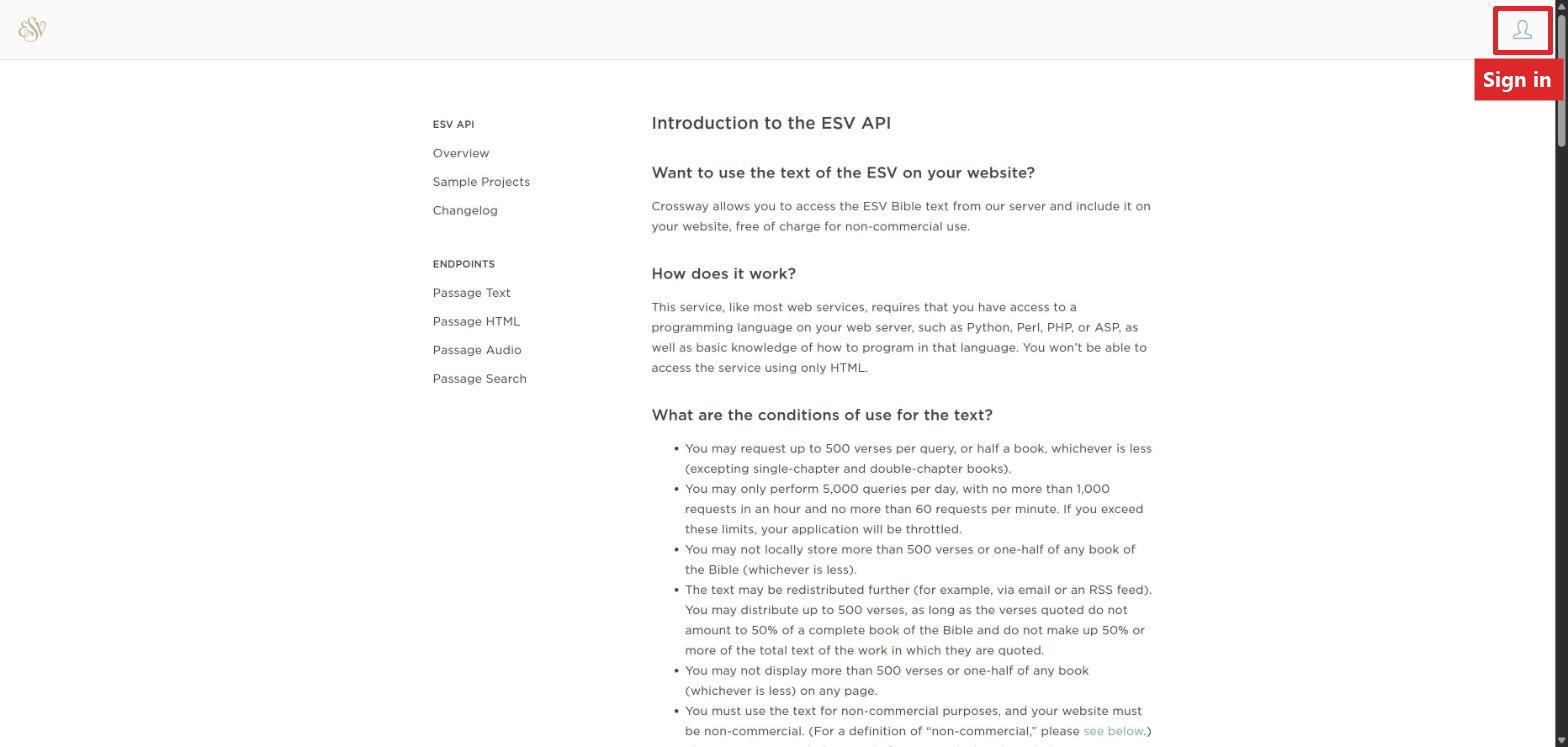
Tap the person icon in the top right.
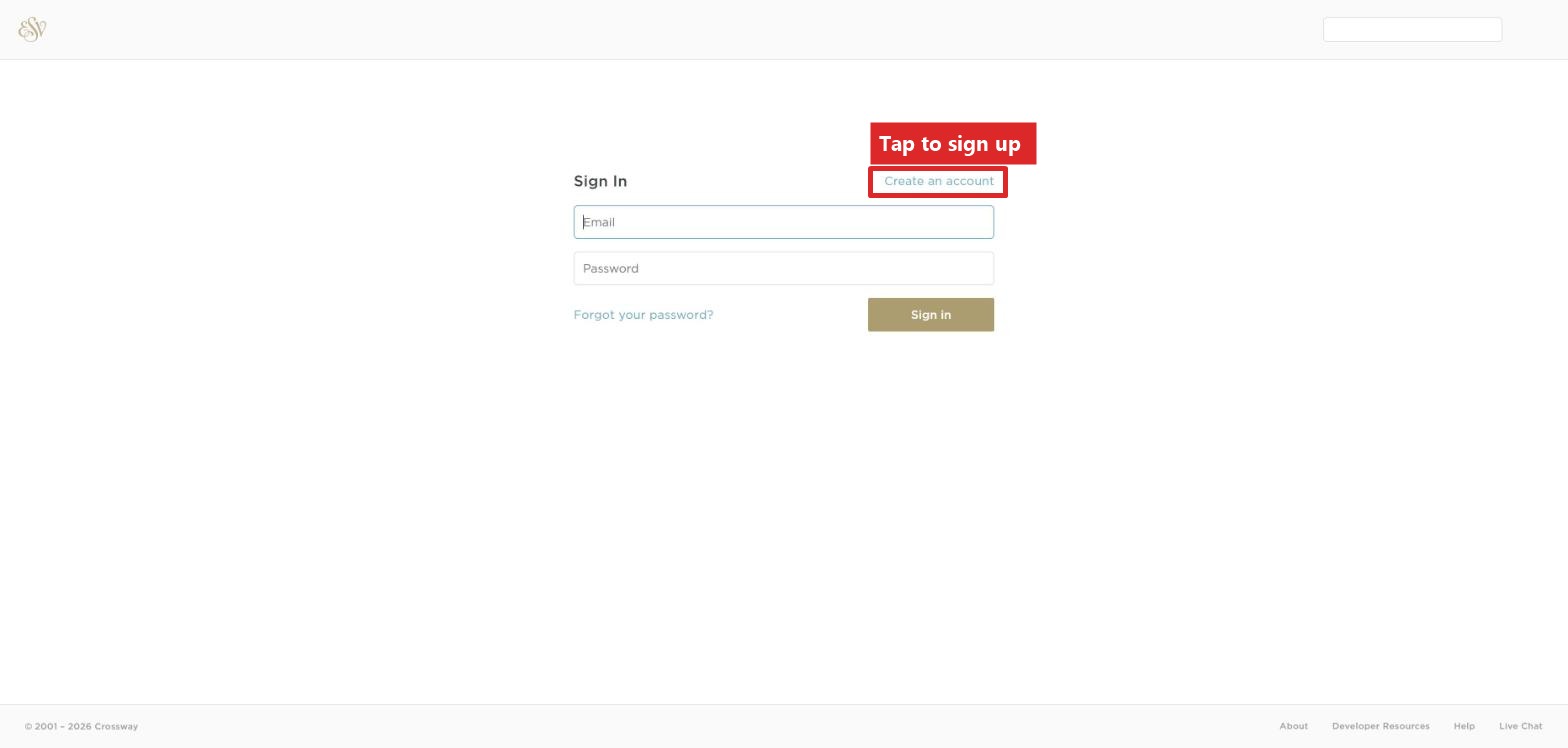
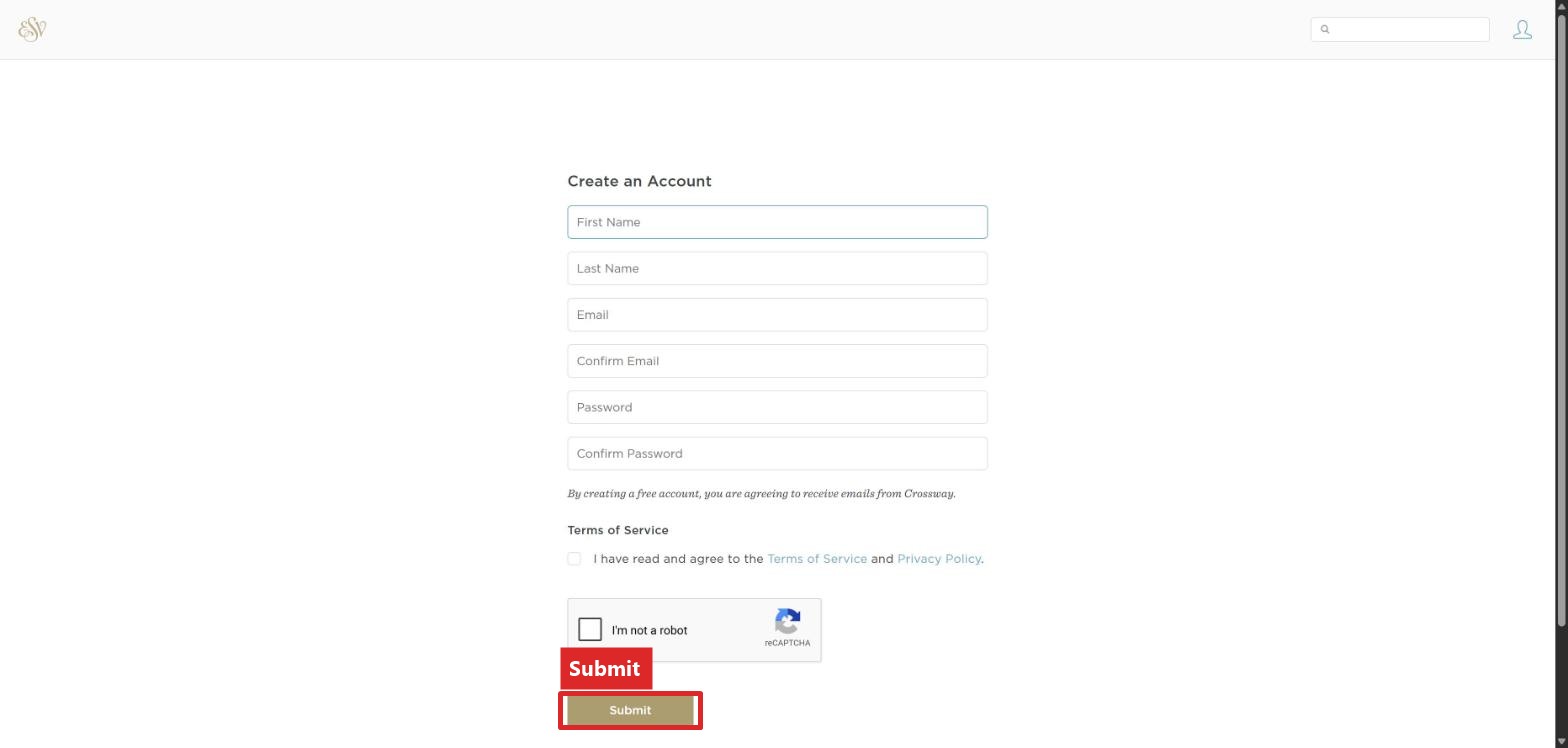
If you don't already have an account, tap Create an account and fill in your name, email, and a password.
3. Sign in a second time
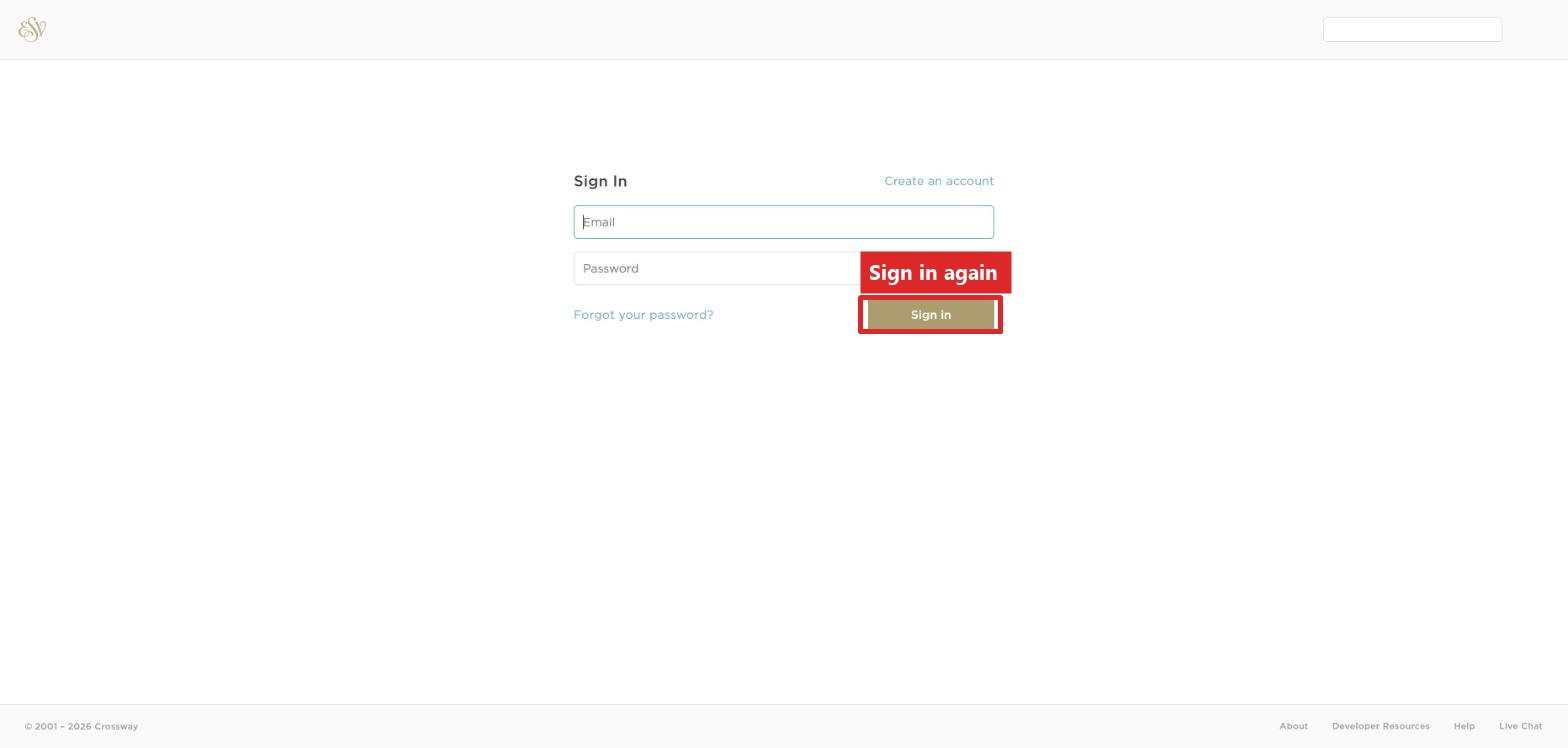
After signing up, go back to api.esv.org and sign in again. This page keeps its own separate sign-in, so don't worry if it asks you again. This is expected.
4. Create an application
You'll land on a page called My API Applications. The first time, it will be empty.
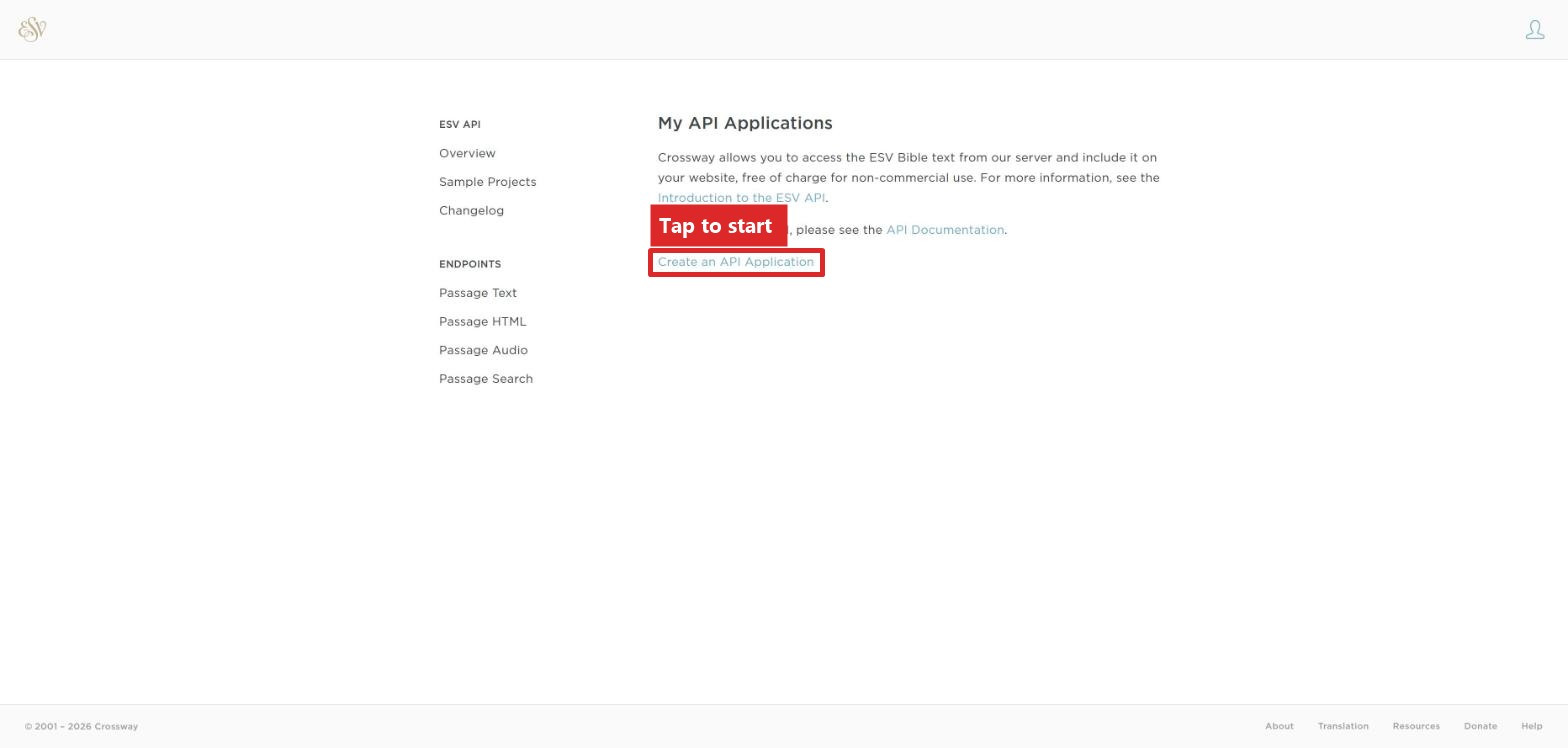
Tap Create an API Application.
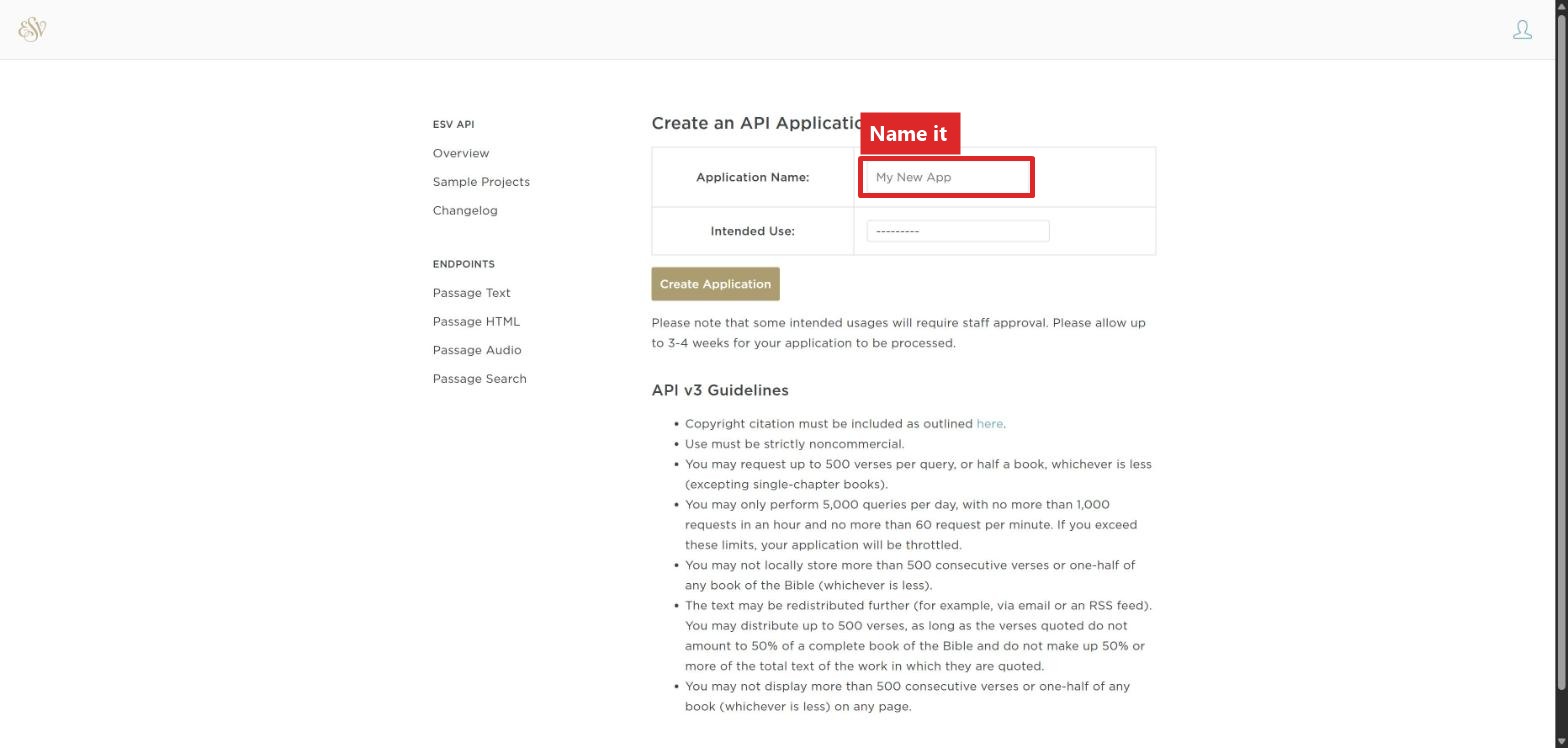
Fill in a name (can be whatever you want) and a sentence about what you will use it for, then answer the other questions. Here's what a filled-out form looks like:
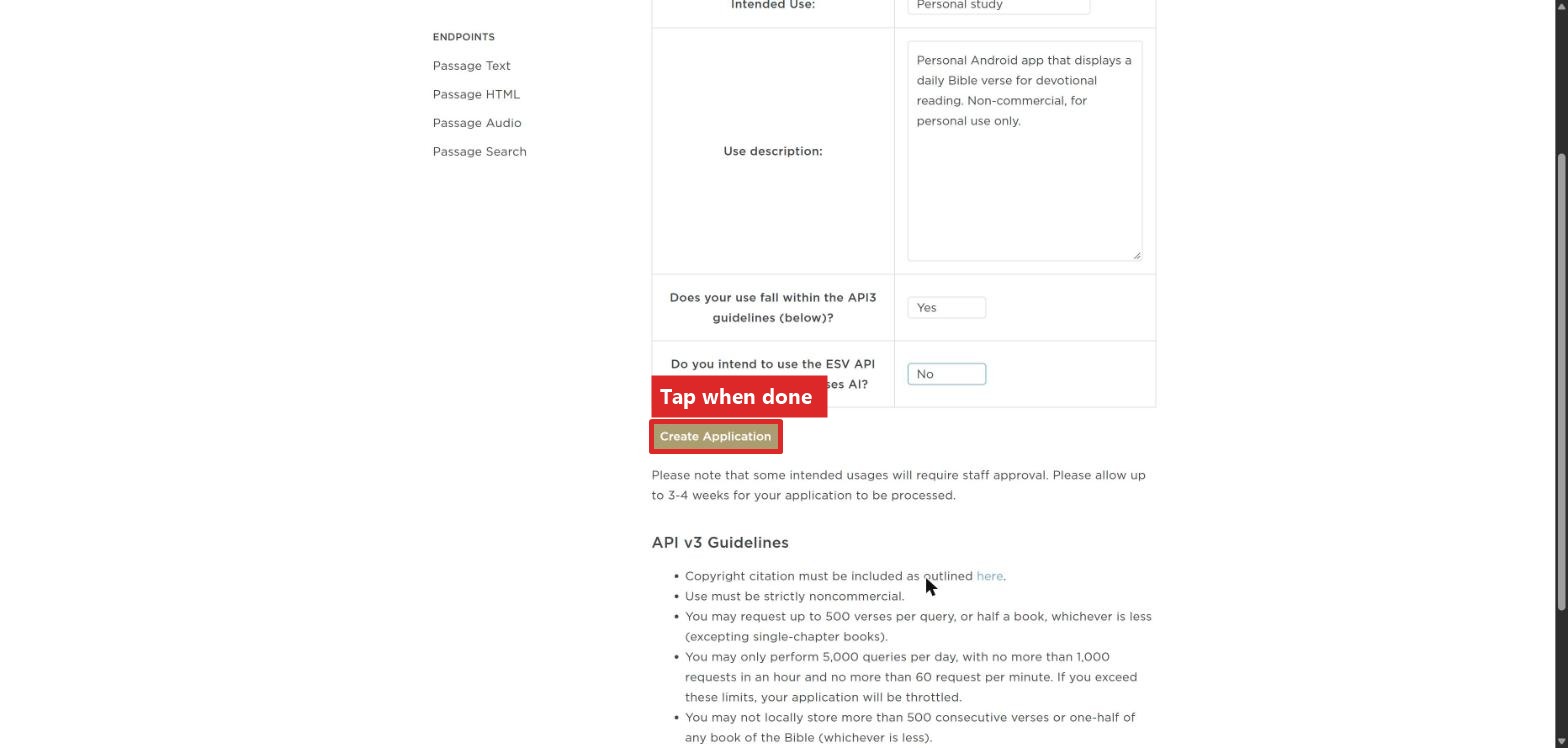
Tap Create Application.
5. Find your key
Back on My API Applications, you'll now see the application you just made.
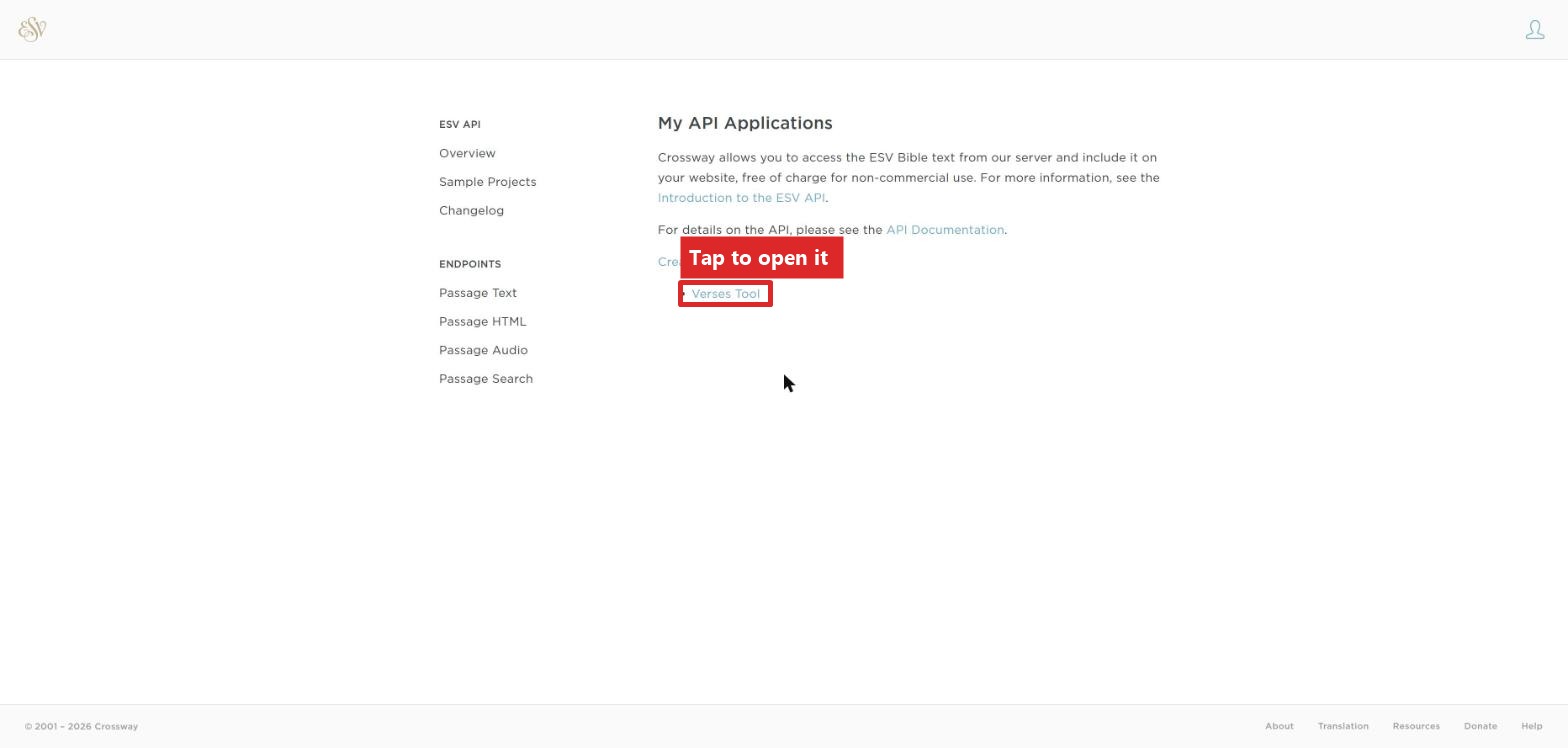
Tap it. You'll see a long string of letters and numbers next to Authorization: Token. That's your key.
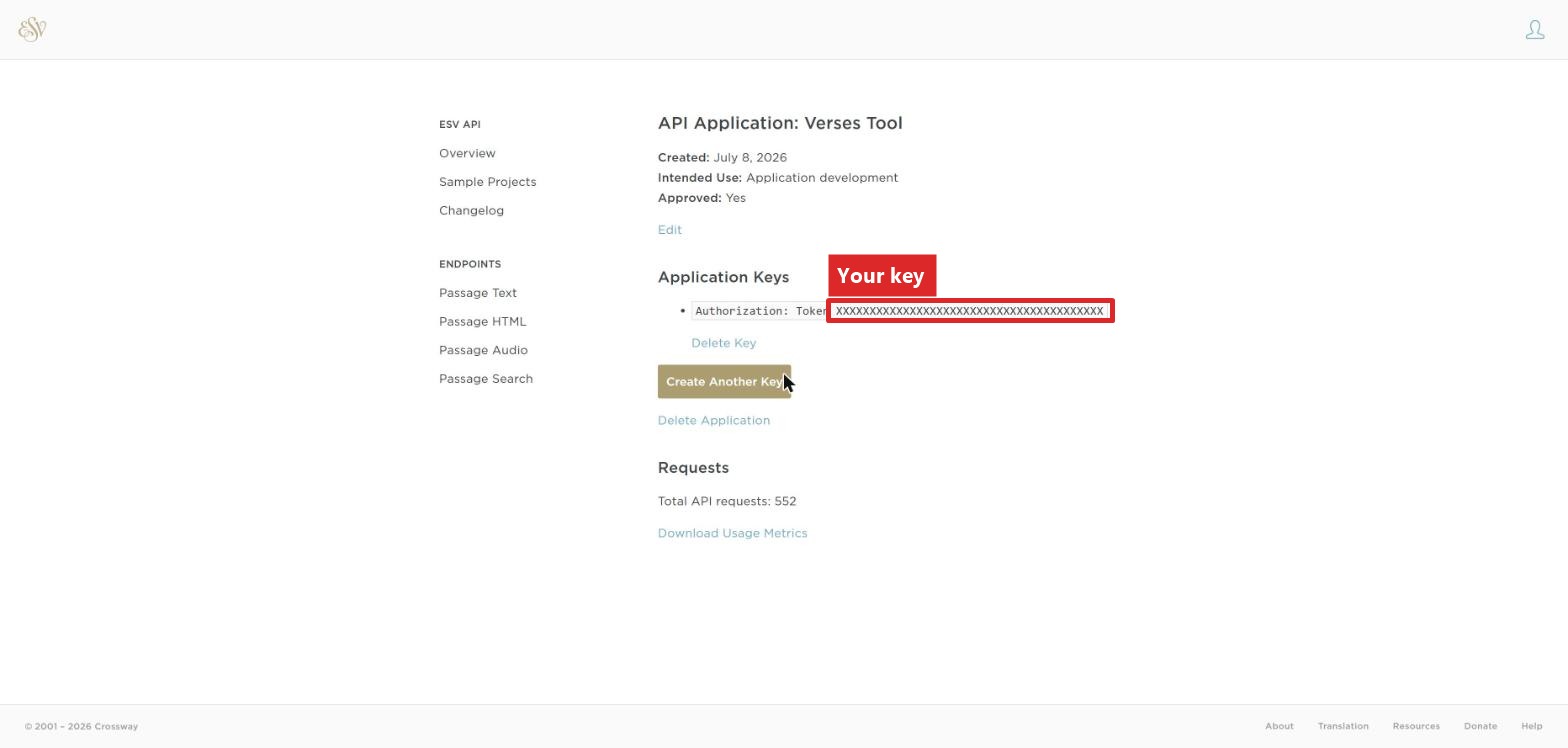
Keep this screen pulled up. (Always a good idea to save this key somewhere else safe too)
6. Add the key to Verses
On your Light Phone, go to Settings → Translations → API Keys → ESV API Key → Enter Key, and type the key you copied. (It's case-sensitive)
That's it! ESV passages will now work in Verses.